On the phone
- Pixel Watch app: Watch faces
- Edit
Google Play
Install on your Wear OS watch from Google Play, then use the watch editor or your watch’s companion app to change available colors and complications.
Start with installation See a personalization example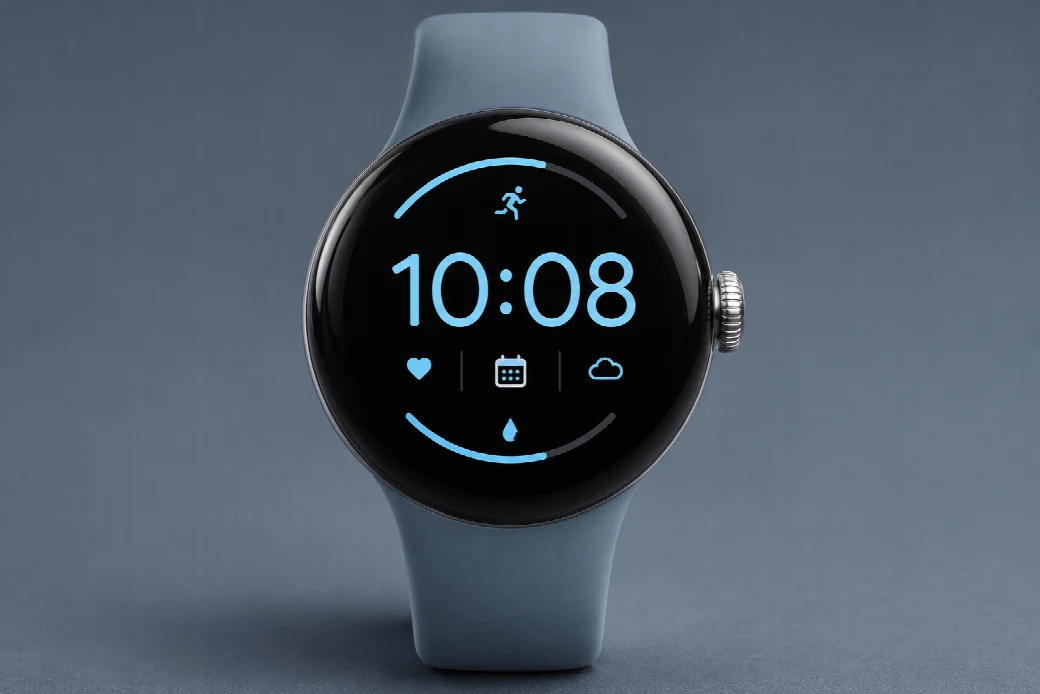
The step pictures are annotated examples, not screenshots. For model-specific screens, see Samsung walkthrough with watch and phone screenshots.
Before you start: Check the listing’s minimum Wear OS version, and make sure the watch is online and using the same Google account as your phone.
Open the listing on your Android phone. If the install button has a device selector, open it and choose your watch, not just your phone.
You can also open Play Store on the watch and search for the face by name. Wait for the install to finish before opening the face picker.
Touch and hold your current dial. Swipe through available designs or open Add / Add watch face to find an installed design that is not in the carousel yet.
Tap a face to make it active. On the phone, you can also select it in Galaxy Wearable or use Use on watch in the Google Pixel Watch app.
On editable faces, you can choose a color preset and swap an indicator for another reading. The design decides which colors, slots, and readings are available.
Touch and hold the dial and choose Edit, Customize, or the pencil. Swipe through the available style and color choices.
Select an editable slot. Choose a provider such as weather or calendar if listed. Grant the requested permission if you want that data to appear, then confirm your changes.
For Pixel Watch, open the Google Pixel Watch app, then Watch faces. Select the design and tap Edit if offered. Adjust the available colors and data slots.
For a Wear OS Galaxy Watch, open Galaxy Wearable and tap Watch faces. Select the installed design, tap Customize if available, and save the changes.
A complication is a small slot for data like weather or steps. Some designs have fixed indicators, and some complications need a separate provider or permission.
Pixel Watch example
Compare the same slot before and after on the illustrated Orbit Dial. Try these steps on a design that offers the controls.
A calendar complication can be blank when there is no upcoming event. If no calendar provider appears, choose another available provider rather than assuming the slot is broken.
Try the change here first. Nothing is sent to your watch or saved.
To tidy the carousel, switch to another face and use Remove if offered. On supported Galaxy watches this may be a minus icon; Galaxy Wearable also offers Watch faces and Manage.
To uninstall a downloaded face from the watch, open its listing in Play Store on the watch, or find it under My Apps, then choose Uninstall. Removing a face from the picker alone does not necessarily uninstall it.
Touch and hold your current dial and tap another installed face. This changes what you wear without removing the other design.
On a supported Galaxy Watch, return to the picker and use the minus icon for the unwanted shortcut. From the phone, look for Watch faces and then Manage in Galaxy Wearable.
If you want to remove the downloaded package, open its listing on the watch or find it in Play Store under My Apps. Choose Uninstall there.
Check the result: If you only removed a shortcut, check Add watch face before downloading the design again.
Compare the screens
Confirm the watch was selected in the install device menu. On the watch, press and hold the dial and check Add watch face. If the listing appears only under apps on your phone, install it to the watch.
Check the install targetOn a Pixel Watch, open the Google Pixel Watch app and look under Watch faces. On a Galaxy Watch running Wear OS, start in Galaxy Wearable. Locate the installed design and look for Edit or Customize.
Compare the phone pathsFirst confirm you selected a provider for the slot. A calendar provider may have no upcoming event to show, and some data needs a permission. Try another offered provider to verify the slot works.
Try replacing an indicatorNot necessarily. A picker action may only remove the shortcut. Check Add watch face to find the installed design again. For a full uninstall, use the watch’s Play Store listing or My Apps.
Compare remove vs. uninstallCheck the listing for that watch and its Wear OS version. Even if both watches use Wear OS, a listed minimum version or device requirement can rule out one of them.
See compatibility checksStill stuck? Contact support