On the phone
- Connect IQ Store
- Device
- My Watch Faces
- Settings
Connect IQ Store
Install through Connect IQ, then change colors and data fields from your watch or phone when the face supports those controls.
Start with installation See a personalization example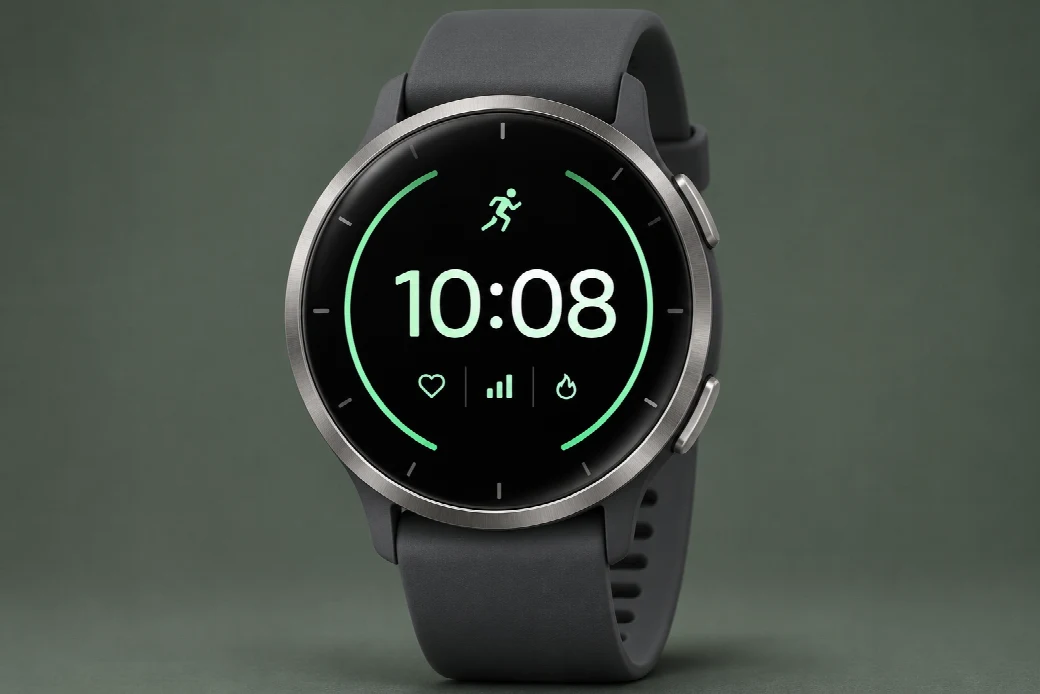
The step pictures are annotated examples, not screenshots. For model-specific screens, see Garmin Venu 3 owner’s manual.
Before you start: Pair the watch in Garmin Connect first. If you own several Garmin devices, check the exact model selected in Connect IQ Store before downloading.
Open Connect IQ Store. Under Device, select the watch that should receive the design.
Open the listing from our site or search for the exact title. Check that your model is supported, tap Install and review any permissions.
Open Garmin Connect with the paired watch nearby and wait for it to sync. The design appears in the watch face picker when installation finishes.
Open the Watch Face menu. On many button-operated models, hold MENU or UP; on a Venu 3, hold the lower button and choose Watch Face. Follow your model’s menu if it differs.
Scroll or swipe to a built-in or downloaded design. Select it and choose Apply if prompted. Switching does not uninstall the previous face.
On editable faces, you can choose a color preset and swap an indicator for another reading. The design decides which colors, slots, and readings are available.
Find the installed face in the Watch Face menu. Open Edit, Customize, or its settings if offered.
Choose an available accent or palette, then choose a data field to replace. For example, swap steps for battery if that field offers both. Confirm and return to the dial.
In Connect IQ Store, open Device and My Watch Faces. Select the installed face, then open Settings.
Adjust the available palette or indicator settings. Save your changes, then sync in Garmin Connect if they have not reached the watch.
If there is no Edit option on the watch, try Connect IQ Store on your phone. Older watches and some editions support fewer settings.
Garmin Venu 3 example
Compare the same slot before and after on the illustrated Daily Dial. Try these steps on a design that offers the controls.
If the watch also offers Edit for this face, you can make the same type of change there. When Edit is absent, try the phone. If neither shows a setting for the slot, it is fixed in that design.
Try the change here first. Nothing is sent to your watch or saved.
Switch to a different face first so you can keep using the watch while the old one is removed.
Under Device and My Watch Faces, open the old face. Use its options menu to uninstall it, then sync the watch.
In Connect IQ Store, open Device and make sure the exact watch you are wearing is selected. Two watches paired to the same phone can have different compatibility lists.
Open Garmin Connect with the watch nearby and sync. If another update is in progress, wait for it to finish and sync again.
Open Watch Face on the watch, not Activities. Browse the available faces and select the downloaded one. If the watch is full, uninstall an unused downloaded face and sync before trying again.
Check the result: After applying the face, confirm its title or design in the picker before testing color and data settings.
Compare the screens
Open the Connect IQ listing and check its compatible devices. In the phone app, also confirm Device shows the watch you will actually wear. For example, having a Venu 3 paired does not mean a design listed for another Venu model will install on it.
Check the installation stepsThe store download can finish before the watch receives it. Open Garmin Connect, check that the watch is connected and sync. After the transfer, open Watch Face on the wrist and select the download.
Walk through a missing downloadStart with Device and My Watch Faces in Connect IQ Store. On compatible setups, Garmin Connect can also show settings under More, Garmin Devices, your watch, and the relevant app category. Save the change, then sync. If neither the app nor the watch exposes the option, the design may have fixed colors.
See the phone settingsThey are independent options. A face may expose a palette without exposing that data slot. Test one change at a time: save the palette, sync, then look for an indicator or data field option.
Try the battery exampleWe recommend switching to a built-in or another downloaded face first. Then uninstall the unwanted design from its Connect IQ options and sync so the change reaches the watch.
See the removal stepsStill stuck? Contact support