On the phone
- Google Health
- Connections
- Your Fitbit
- Watch faces
- Settings
Fitbit Gallery
Manage installed Fitbit clocks and their available options from the Google Health app (formerly Fitbit). Check the third-party installation notice before removing an existing design.
Start with installation See a personalization example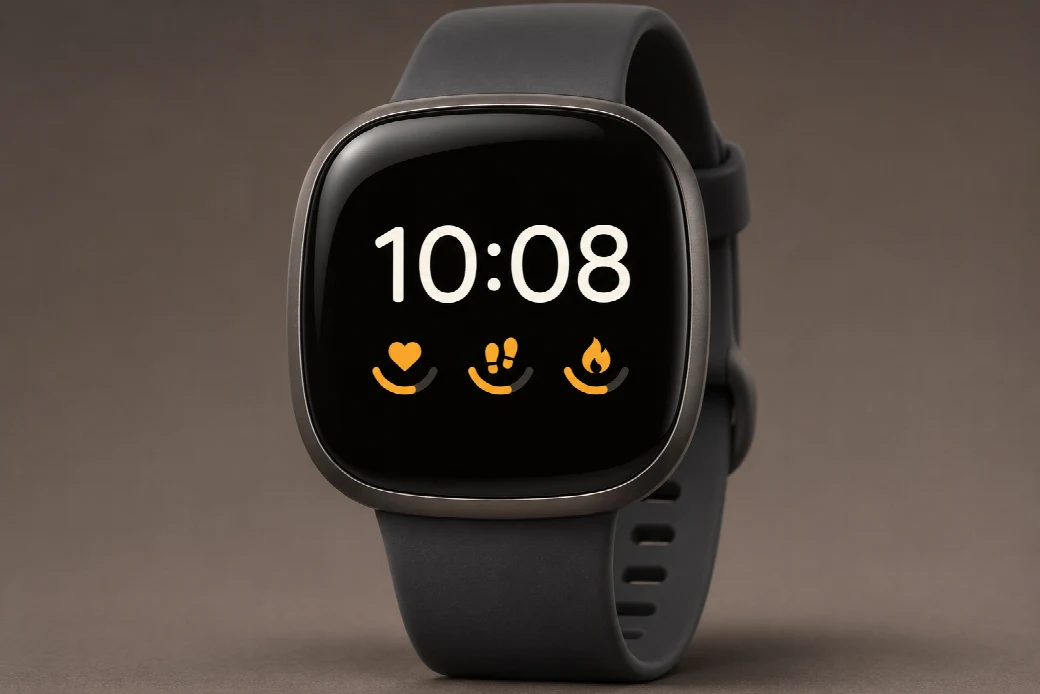
The step pictures are annotated examples, not screenshots. For model-specific screens, see Google Health clock face help.
Before you start: Keep your Fitbit paired and nearby. The clocks offered in the gallery depend on your device. Check the third-party notice before making room for a new clock.
Open Google Health (formerly Fitbit), tap Connections, select your Fitbit and open Watch faces.
Browse the Clocks tab. Select a compatible clock that is still available for installation, review permissions and let it sync to the watch.
On supported Sense and Versa models, open the Clocks app, swipe and tap a saved clock. On Sense series, Versa 3 and Versa 4 you can also hold the current dial to bring up saved clocks.
In Google Health, open Watch faces for your Fitbit. Pick a saved clock and tap Select. Compatible Sense and Versa models can keep up to five saved clocks.
On editable faces, you can choose a color preset and swap an indicator for another reading. The design decides which colors, slots, and readings are available.
On-watch customization is not a standard editor for every Fitbit clock. Use controls shown by the design itself, if it has any. Holding the dial to switch clocks does not edit colors or indicators.
In Google Health, open Watch faces for your device. Select the installed clock, open Settings if available, and change the colors or indicators offered by that design.
If you already use a third-party clock and want to keep it, leave it installed. A factory reset also removes it.
Fitbit Versa 3 example
Compare the same slot before and after on the illustrated Everyday Clock. Try these steps on a design that offers the controls.
Holding the dial can switch between saved clocks on supported models; it does not open a universal color editor. Do not remove a third-party clock you want to keep.
Try the change here first. Nothing is sent to your watch or saved.
This example has a fixed steps indicator. Some installed faces offer more settings.
If you still use a third-party clock, switch away without deleting it if you want to keep it. See the installation cutoff above.
From Watch faces for your device, tap the saved clock and choose Remove clock face. Only do this if you are sure: a removed third-party face cannot be reinstalled after the cutoff.
Before clearing a saved slot, check the Fitbit notice above. Removing a clock or resetting the device can prevent reinstalling that design after the cutoff.
On Versa 3, hold the current dial to browse saved clocks. Alternatively, open the Fitbit’s Watch faces screen in Google Health, select an existing clock and choose Select, not Remove clock face.
If steps are missing on the old clock, check the permissions it needs from its listing, or compare the reading against a saved clock by Google Health.
Check the result: Switch back from the saved clocks list to confirm that the original design is still available.
Compare the screens
Google says already-installed clocks can continue working. The change stops new third-party installs and updates. Do not remove a third-party clock you want to keep or factory-reset just to troubleshoot it.
Read the removal warningChoose another saved clock. On Versa 3, hold the dial to open saved clocks, or pick a saved clock in Watch faces in Google Health and tap Select. Do not tap Remove clock face.
See the safe switching exampleHolding the watch face usually opens the saved-clock picker, not a universal editor. Look for the installed clock’s Settings on the phone. On-watch controls exist only if the individual design offers them.
See what can be customizedReview the clock’s settings and the permissions it needs. Then compare the reading on a saved clock by Google Health, without deleting the original face.
Check missing readingsCompatible Sense and Versa models can keep up to five saved clocks. If you want to keep a third-party clock, leave it installed and switch to an existing saved clock instead of clearing its slot.
See how saved clocks workStill stuck? Contact support